
Your first Work
Follow Quick Start, complete account and model setup, wait for the dependencies to be ready, then select Open workbench.
Create and open
Select New Work and give it a name, such as “My Creative Studio.” Wait for it to be ready, open Chat, and send a concrete request:
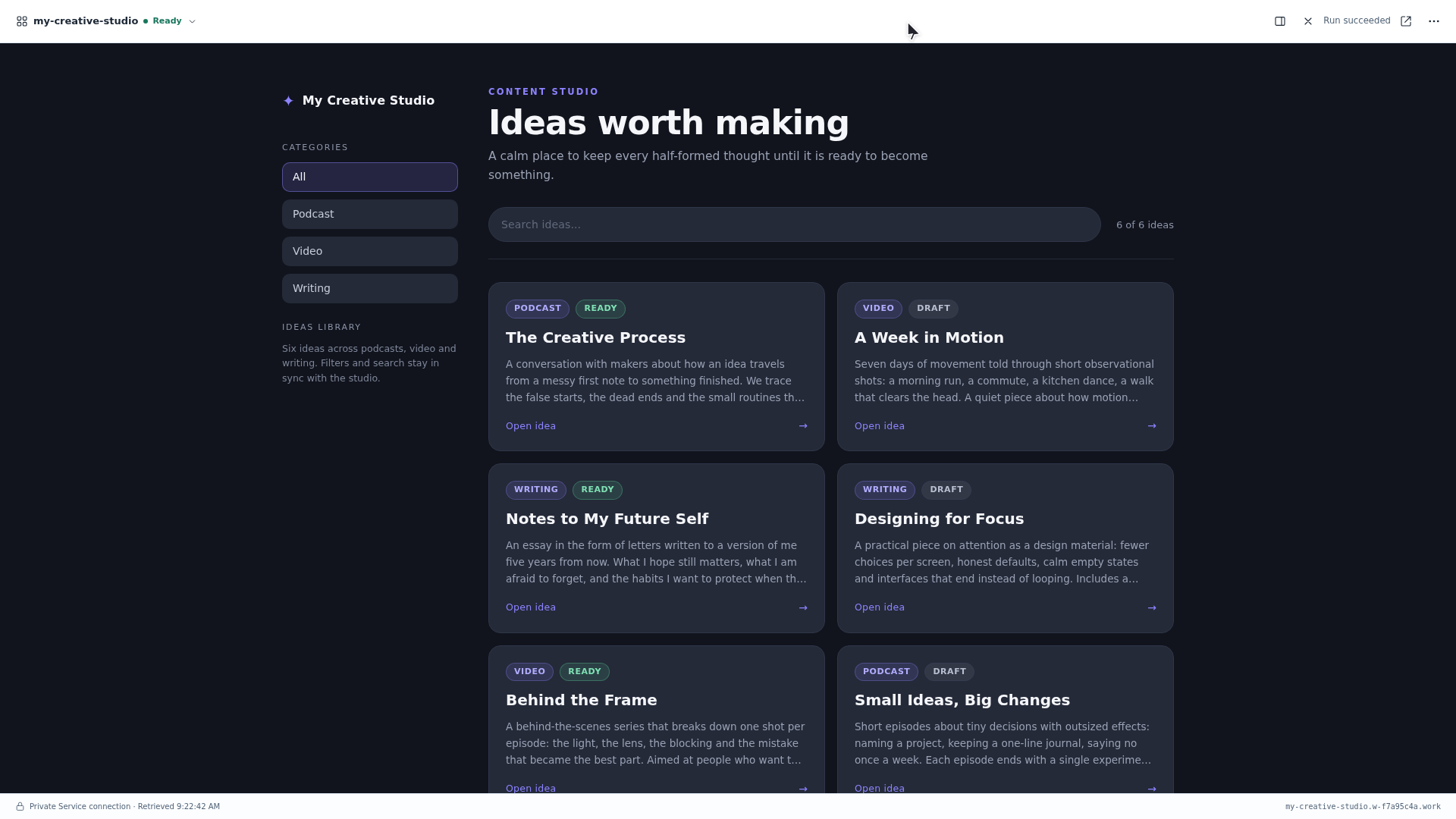
Build a content studio for my podcast, video, and writing ideas. Include categories, search, a detail view, and persistent data.
Follow the results in the conversation. When the app is ready, open its Service and try its search, filters, and idea details.
Keep improving the same Work
Return to Chat and describe the next change:
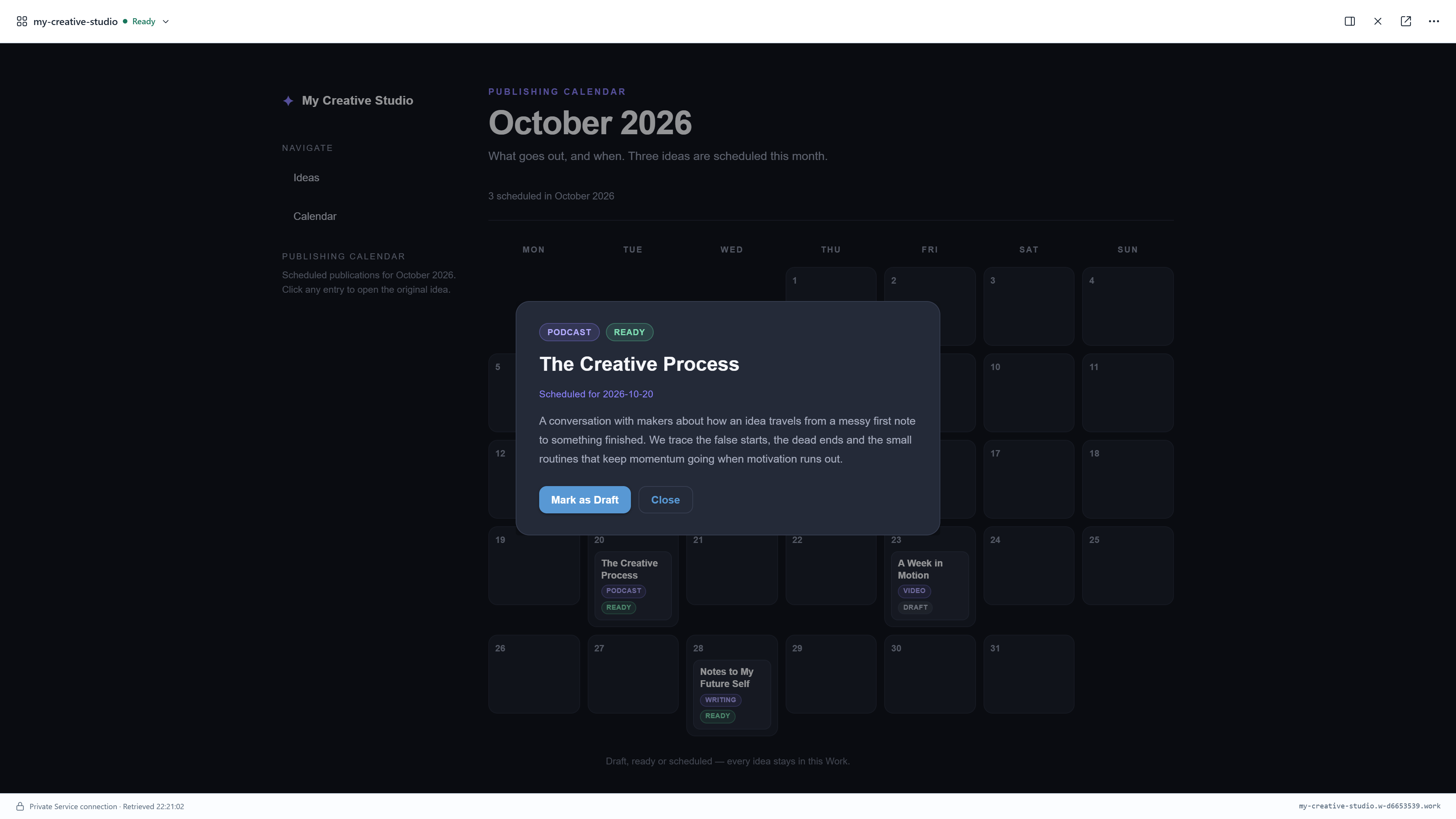
Add a publishing calendar. Keep my existing ideas. Clicking a calendar entry should open the original idea details.
Check the updated app and your existing data. The conversation, app, and files stay together in this Work, ready for the next improvement.
Use Files to browse, upload, and download workspace files. Settings saves configuration; explicitly Apply changes when the page requires it.
Take the whole Work with you
- Stop the Work and wait for it to stop.
- Export a
.workfile from the Work menu. - Import that file into another compatible Piwork installation and wait for completion.
- The imported Work is stopped. Click Start yourself.
- Wait for it to be ready, open the app, check the existing content, and continue.
The recipient supplies their own model credentials and a compatible runtime. A .work export moves a Work; it is not a backup of the entire Piwork installation. It includes workspace content, private history, and any credentials you stored there. Review what you share and send it only to a trusted recipient.
Continue next time
Closing the browser does not stop your Work. To stop one Work, select Stop from its workbench menu. Select Start to continue later.
When you finish using Piwork locally, stop it normally through the desktop launcher. Wait for shutdown to finish and keep the data directory. Open the same launcher to return.