
Quick Start
Download → Start → Set up → Open a Work. Follow this one path to run Piwork on your computer.
One-click launcher v0.2.0 · Includes Piwork 0.0.10
1. Download and open
Visit Downloads, choose Windows or Linux, and open the downloaded desktop launcher.
- Windows: double-click the downloaded
.exefile. - Linux: allow the file to run as a program in its file properties, then open it.
Keep the default data directory. The launcher will reuse this installation and its data the next time you open it.
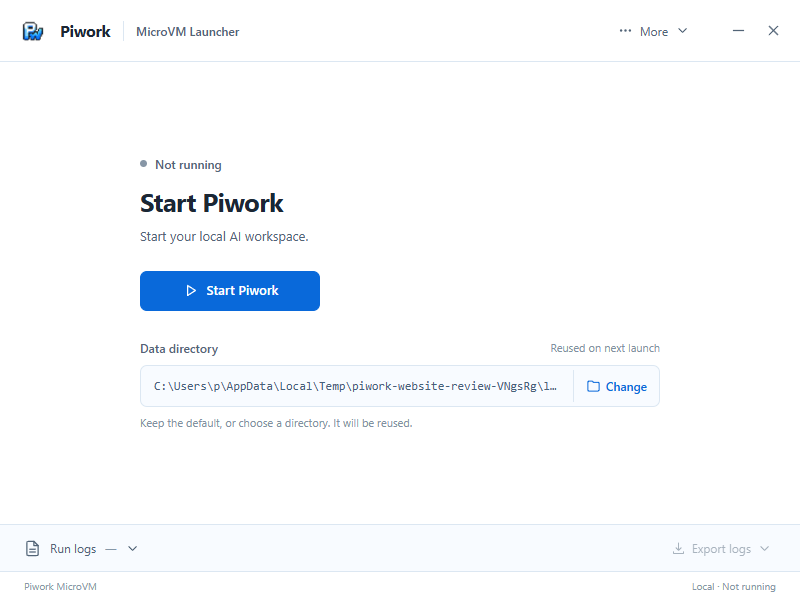
2. Start Piwork
Click Start Piwork. The launcher shows progress as it checks your computer, starts the runtime, and waits for the web interface.
When Open Piwork becomes available, click it to open Piwork in your browser. Initial startup time depends on your computer; keep the launcher window open while it starts.
3. Complete first-time setup
On your first visit, follow the steps in Piwork:
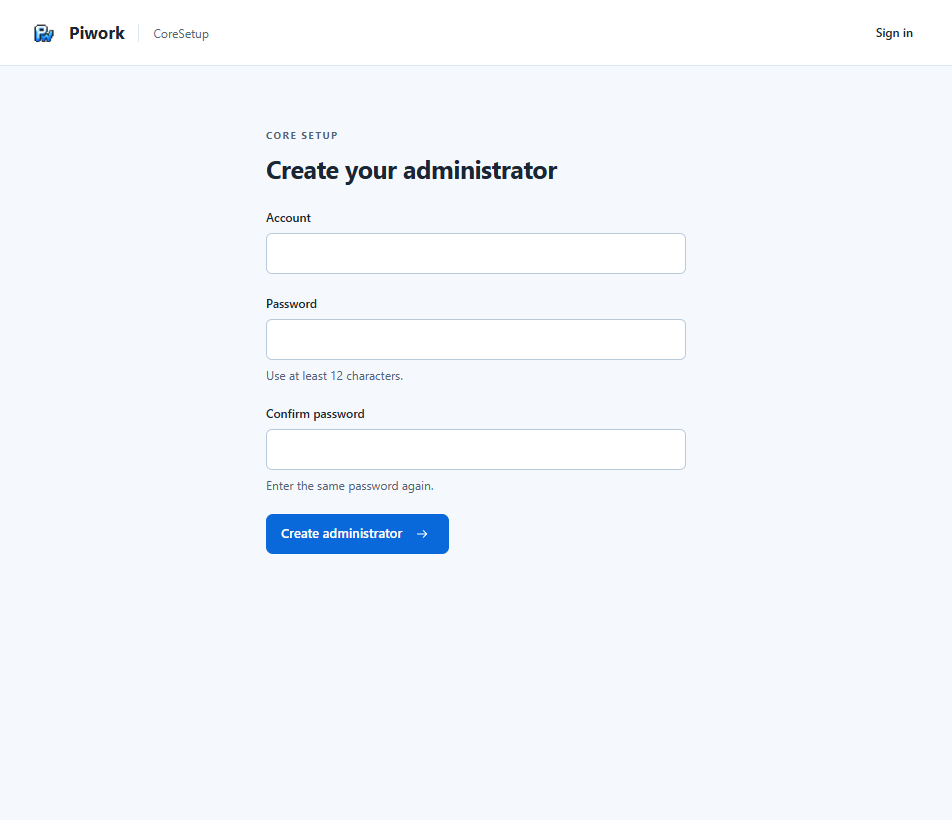
- Create an administrator: enter the account, password, and password confirmation, then sign in.
- Configure an AI model: in Quick setup, enter your own API Key. Open Advanced settings to set the model ID, API type, and Base URL, or select a saved model.
- Select Save and continue, wait for the required components to show Ready, then select Open workbench.
One-click launch starts the environment. Your first visit still includes account and model setup; you supply your own model credentials.
4. Open your first Work
In the workbench, select New Work, give it a name, and wait for it to be ready. Open Chat and describe a tool you want to make:
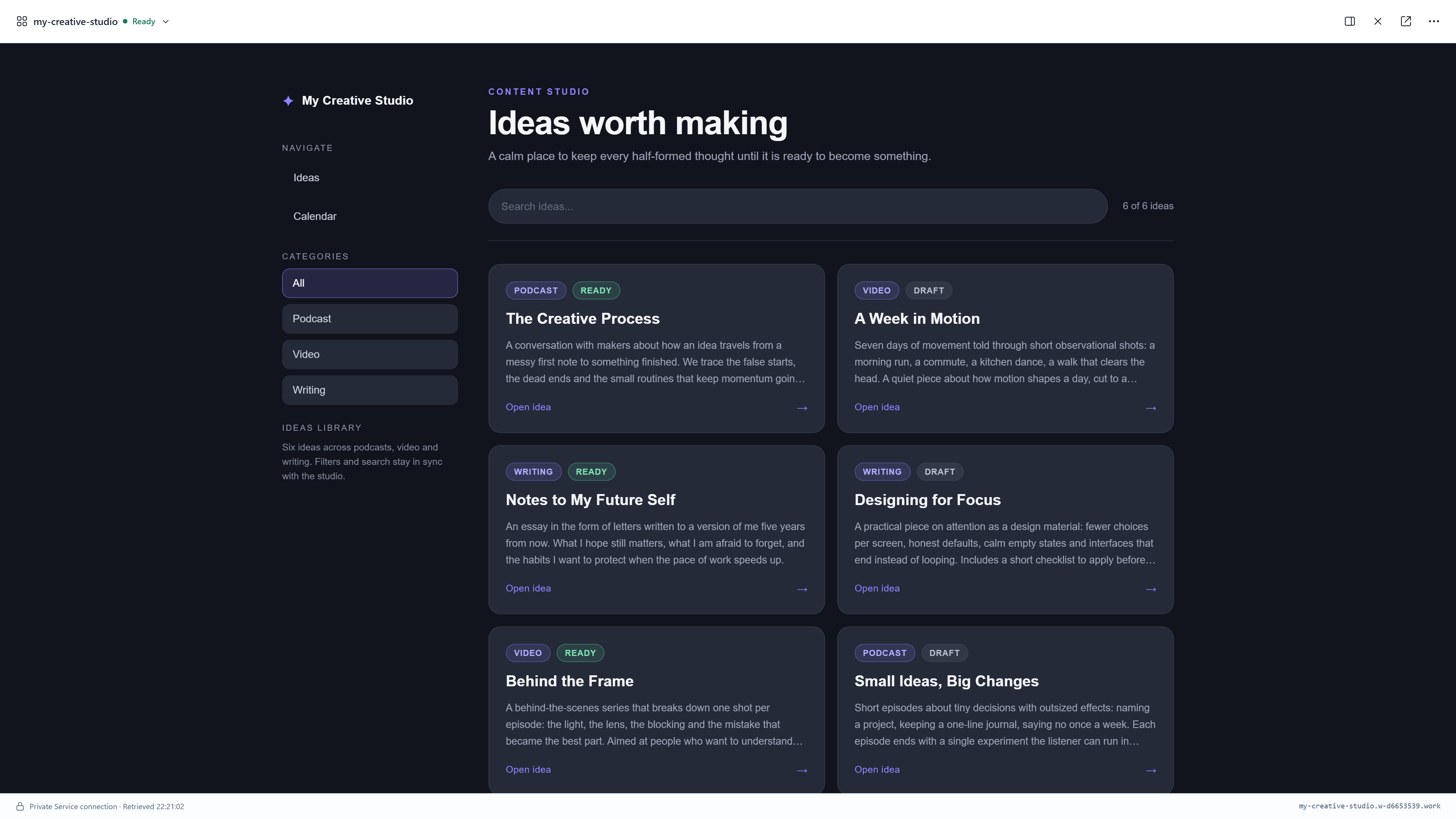
Build me a content studio for my podcast, video, and writing ideas, with categories, search, and a detail view.
Follow progress in the conversation. When the app is ready, open its Service and use it. Keep making changes through the same Work.
Next, read Your first Work for files, apps, ongoing changes, and moving your workspace.
System requirements and help
What does my computer need?
- Windows 11 x86-64: enable firmware virtualization and Windows Hypervisor Platform, and install WebView2 Runtime. Restart when required by Windows.
- Linux x86-64: read/write access to
/dev/kvm, GTK 3, WebKitGTK 4.1, and a system browser launcher. - Defaults are 2 vCPU and 4 GiB RAM. Allow at least 4 GiB free in the installation directory plus 1 GiB for resource extraction.
- Have your AI provider’s model details and credentials ready. The runtime must be able to reach the model endpoint.
What if startup fails or never becomes ready?
Keep the launcher open and check the current stage and run logs. Check the requirements above first. If the logs report a port conflict, stop the conflicting Piwork instance normally before retrying. For a persistent problem, use the launcher’s log export and report the issue. Do not include passwords or API keys.
How do I continue next time, or quit?
Open the same launcher with the same data directory and click Start to continue. Closing the browser does not stop your Work. When you finish, stop Piwork in the launcher, or close its window and confirm a normal shutdown. Wait for shutdown to finish, and keep the installation data for next time.